11 mins read
The Complete Guide to YouTube Audio Quality and MP3 Files
A complete starting point for understanding source quality, MP3 settings, file size, compatibility, safe browsing, and responsible use.
Read article

Welcome to Ytmp3, a browser-based YouTube downloader and MP3/MP4 converter that helps you find a video and save it in a suitable format. Enter music keywords and press Search to see results, then use Download on your chosen entry to reach its conversion choices. A recognized YouTube Link opens the converter directly. Choose MP3 for listening or MP4 when you also want the video, using the quality settings available for that source.



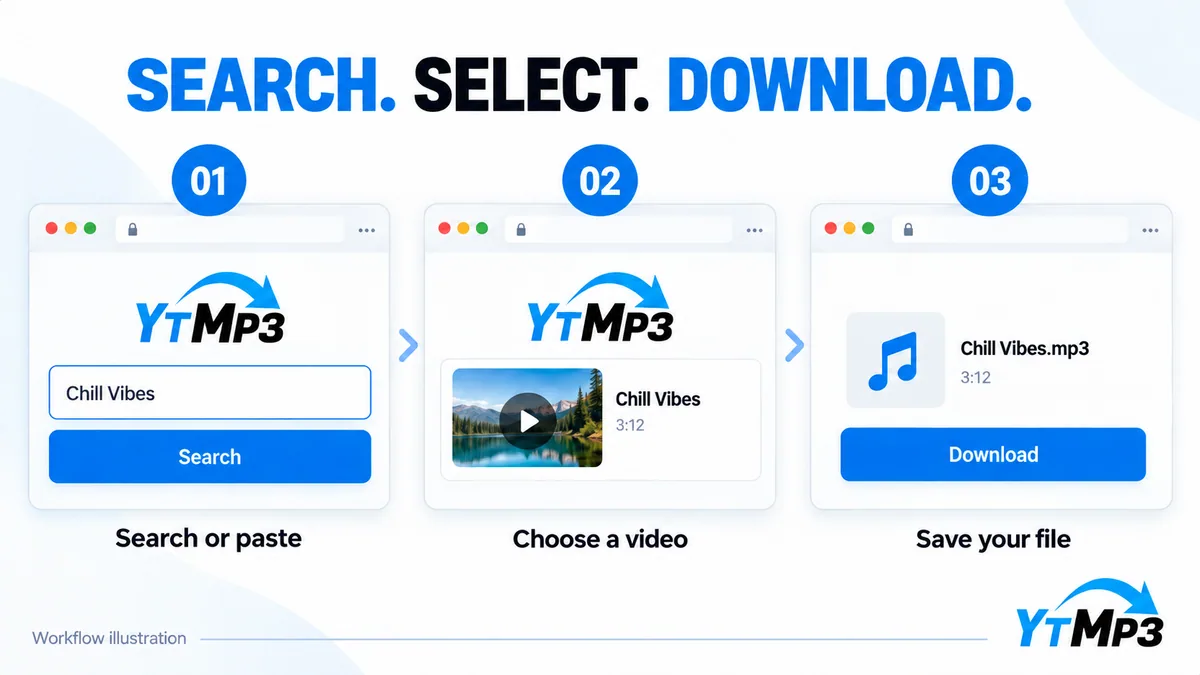
Enter an artist and song name, then choose Search to display matching videos. If you already have the address, paste the YouTube Link to reach its converter; Convert requests processing there.
Compare the uploader, title and duration before choosing Download beside a result. Similar names can identify different versions. For a direct YouTube Link, confirm that the converter identifies the video you wanted.
Choose MP3 or MP4 and one of the available quality settings. After conversion, use the file download control and allow the browser transfer to finish before trying to play the saved file.
An MP3 file is useful when the visual part of a video adds nothing to your listening. It generally takes less storage than keeping the same content as video, making format selection worth considering before a longer download. The Ytmp3 Converter lets you request MP3 for the selected source without retaining its visual component.
MP3 settings can include 320kbps, 256kbps and 128kbps, depending on the source video and conversion service. For equal duration, 128kbps generally produces the smallest file; 256kbps offers a middle choice, while 320kbps uses more space. A higher bitrate cannot restore detail absent from the source, so consider the original quality as well as your storage allowance.
MP4 is the appropriate choice when you need to follow movement or read information shown on screen. The resolution menu may include HD choices of 1080p and 720p, plus 480p, 360p, 240p and 144p. MP4 resolution availability depends on the source video and conversion service; an offered MP3 bitrate does not establish which video resolutions will be available.
For a longer video, weigh readable on-screen detail against the size of the download. Lower resolutions can reduce storage needs, but small lettering may become harder to distinguish. Select a higher resolution when the source supports useful detail and your device has room. Increasing the setting cannot restore visual detail missing from the original video.
Your browser settings determine where a download goes, and some browsers ask you to choose a destination. Check that location before saving several files so they remain easy to find. On a computer, the browser's download list may offer a folder shortcut; on Android, use the file manager, and on iPhone, check the Files app.
When a file will not open, first establish whether the browser finished saving it. A conversion can succeed while the later transfer is interrupted, so another conversion may be unnecessary. Check for a partial or empty file, then use a player that supports its format. Changing an MP3 or MP4 extension will not repair damaged contents.
These recognized single-video YouTube Links provide direct access to the converter. Address recognition alone cannot guarantee that the video remains available or that the conversion service can process it.
youtube.com/watch?v=VIDEO_IDyoutu.be/VIDEO_IDyoutube.com/shorts/VIDEO_IDm.youtube.com/watch?v=VIDEO_IDyoutube.com/embed/VIDEO_IDYtmp3 works in the browser without a separate installation, but third-party downloads can introduce risks. Treat requests for passwords, extensions or unexpected installers as reasons to stop, not as conversion requirements. Keep browser protections enabled and inspect the file type before opening a download. An MP3 or MP4 selection should not require you to run an unrelated program.
If a YouTube URL is invalid, copy the individual video's address afresh and remove any surrounding text. If the video is unavailable, stop with that source. A recognized address followed by failed MP3 conversion is a different issue: the conversion service may be busy or unable to process the selection. Wait, retry once, and return later if it fails again. When saving stalls after conversion, check the connection, free storage and browser download status; correct the cause before attempting one more transfer.
Disclaimer: Ytmp3 is an independently operated YouTube downloader and converter. It is not affiliated with, endorsed by, or sponsored by YouTube or Google. YouTube and related names belong to their respective owners. References to those services describe compatible links and do not imply an official partnership.
Download only content that you own or have permission to save. Follow the applicable licence conditions, including attribution where required, as well as copyright law and YouTube's Terms of Service. Personal or non-commercial use does not automatically grant permission to copy or redistribute someone else's content.
Download Tips for Video Selection, Quality and Saved Files
Check the uploader and duration when several videos have the same song title; these details help distinguish the version you meant to save. Choose a bitrate or resolution that serves your listening or viewing needs rather than the largest number by default. After downloading, open the destination folder and assign a useful filename without changing its extension.
Ytmp3 helps you find a YouTube video and convert it to MP3 or MP4 through a browser workflow. Its YouTube MP3 Converter route creates a listening file, while MP4 retains video. Keywords show results to choose from; a recognized YouTube Link takes you directly to conversion choices.
Paste the YouTube Link into the search field, choose MP3 in the converter and select an offered bitrate. Request conversion, then save the prepared file when it is ready. The YouTube MP3 Downloader workflow still requires a completed browser transfer before the file can be used.
Ytmp3 is free to use: the website's search, conversion and download workflow requires no payment. Find a video, select an available format and save the prepared file through your browser. Free access does not ensure that every source can be processed or offers every quality setting.
No separate application is needed for this website workflow. Open Ytmp3 in your browser and use its conversion controls; the browser handles saving the file. Requests to install unrelated software should not be treated as a necessary step in obtaining an MP3 or MP4 download.
You can use the browser workflow on Android and iPhone, although saving controls and destinations vary by browser. Keep track of the download in the browser's list. Android users can locate it with a file manager; iPhone users can check Files at the configured destination.
MP3 choices may include 320kbps, 256kbps and 128kbps, with availability depending on the source and conversion service. Choose a lower bitrate to conserve storage or a higher offered setting when useful source detail warrants it. No bitrate can recreate detail the source lacks.
Choose MP4 in the converter when it is offered for your selected video, then select an available resolution. MP4 retains the visual component as well as sound. Check storage before saving a long video, since duration and resolution both influence file size.
Check that the link identifies one video and contains no surrounding message text. Copy the address again from the intended video's page rather than editing an uncertain URL by hand. If the source has been removed or cannot be accessed, stop trying that video.
If the video was identified but conversion stalls, the service may be busy or unable to handle that source. Wait before making one retry; if it fails again, leave further attempts for later. Starting several requests together is unlikely to resolve the underlying problem.
Avoid sharing passwords or accepting unexpected file installations while obtaining a download. Keep browser safeguards active and check that the saved file matches the format you selected before opening it. Third-party downloads can introduce risks even when no separate Ytmp3 installation is needed.
No, a YouTube account is not needed for this website workflow. You can begin with music keywords or a YouTube Link without signing in. Never supply a password to resolve a conversion error; inaccessible videos should be left rather than pursued through credential requests.
Permission depends on copyright ownership or another valid rights basis, applicable law in your jurisdiction, and YouTube terms as separate considerations. Personal use alone does not establish permission. Confirm that your authorization covers downloading and any intended later use, including sharing or editing the saved material.
11 mins read
A complete starting point for understanding source quality, MP3 settings, file size, compatibility, safe browsing, and responsible use.
Read article7 mins read
A listening focused method for selecting bitrate without assuming that the largest number is always the most useful choice.
Read article7 mins read
Use a short sequence of checks to separate link problems, access limits, network interruptions, browser issues, and storage failures.
Read article6 mins read
A calm, repeatable checklist for evaluating a page before you paste a link, grant access, or open a downloaded file.
Read article© 2026 Ytmp3